Follow the agent's work
Read the agent's plan, steps, and diffs, review changed files, and queue, stop, edit, or retry your prompts.
While an agent works, the chat shows what it is doing step by step. You can read its plan, open each file it touched, and line up your next requests. You can also stop it at any time.
Read the plan
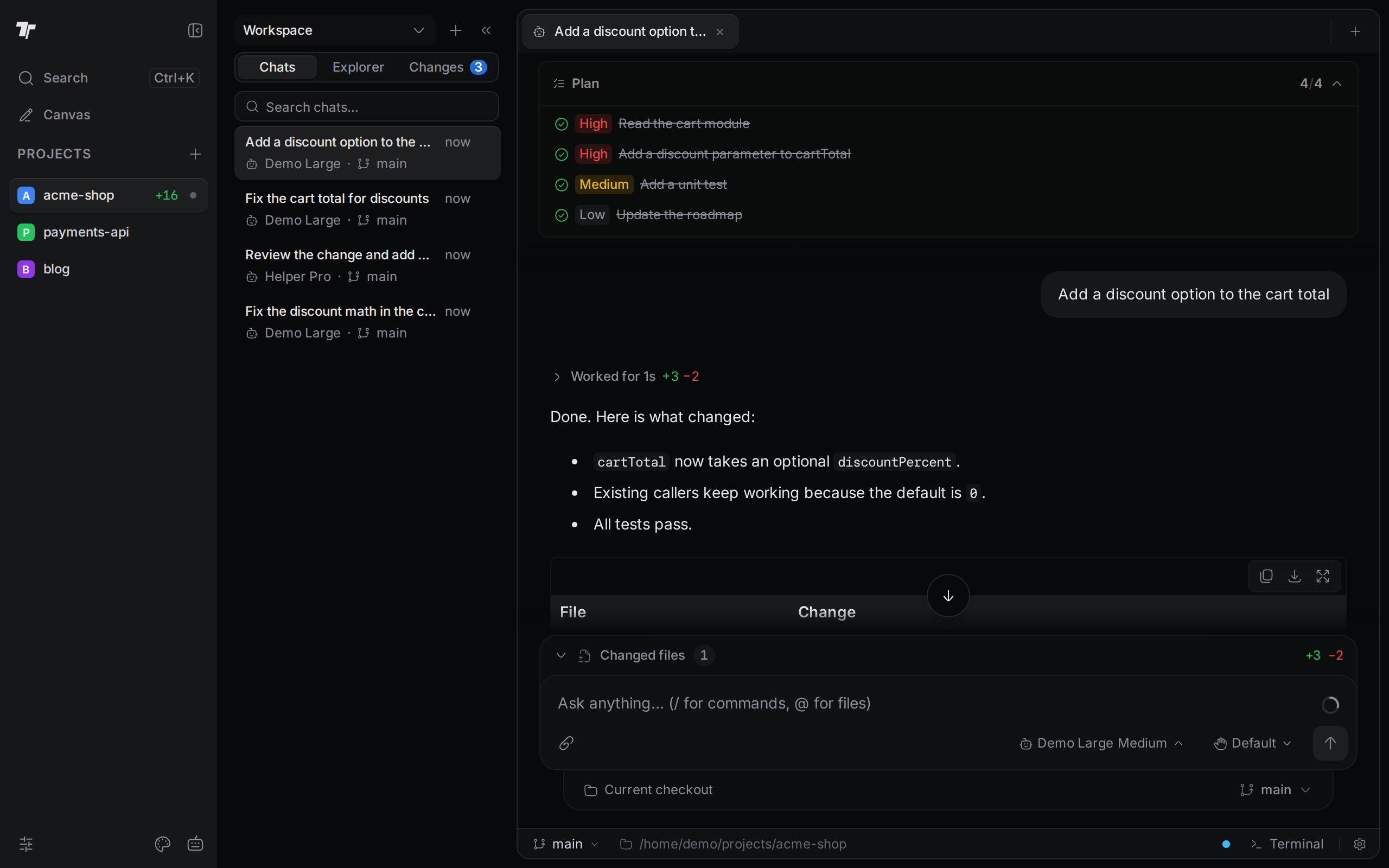
Many agents write a plan before they start. The plan stays at the top of the chat while you scroll. Its header shows Plan and how many tasks are done, such as 3/4. A spinner shows while a task is in progress.
Each task has a status icon and a priority: High, Medium, or Low. Finished tasks are crossed out. Click a task that has details to read them. Click the header to collapse or expand the plan. On a phone, the plan starts collapsed.
See each step
While the agent works, a Working… row sits above its reply. When the turn ends, the row changes to Worked for and the time it took, with the number of lines added and removed. Click the row to open it. If a step failed, the row is red and says "needs attention".
Inside, the steps are grouped, for example "Read 1 file, ran 1 search". Click a group to see its steps. Each step names what the agent did and what it did it to, such as Ran bun test. A file step shows the file name, such as cart.ts, and a read can add the lines it read. A failed step has a failure icon.
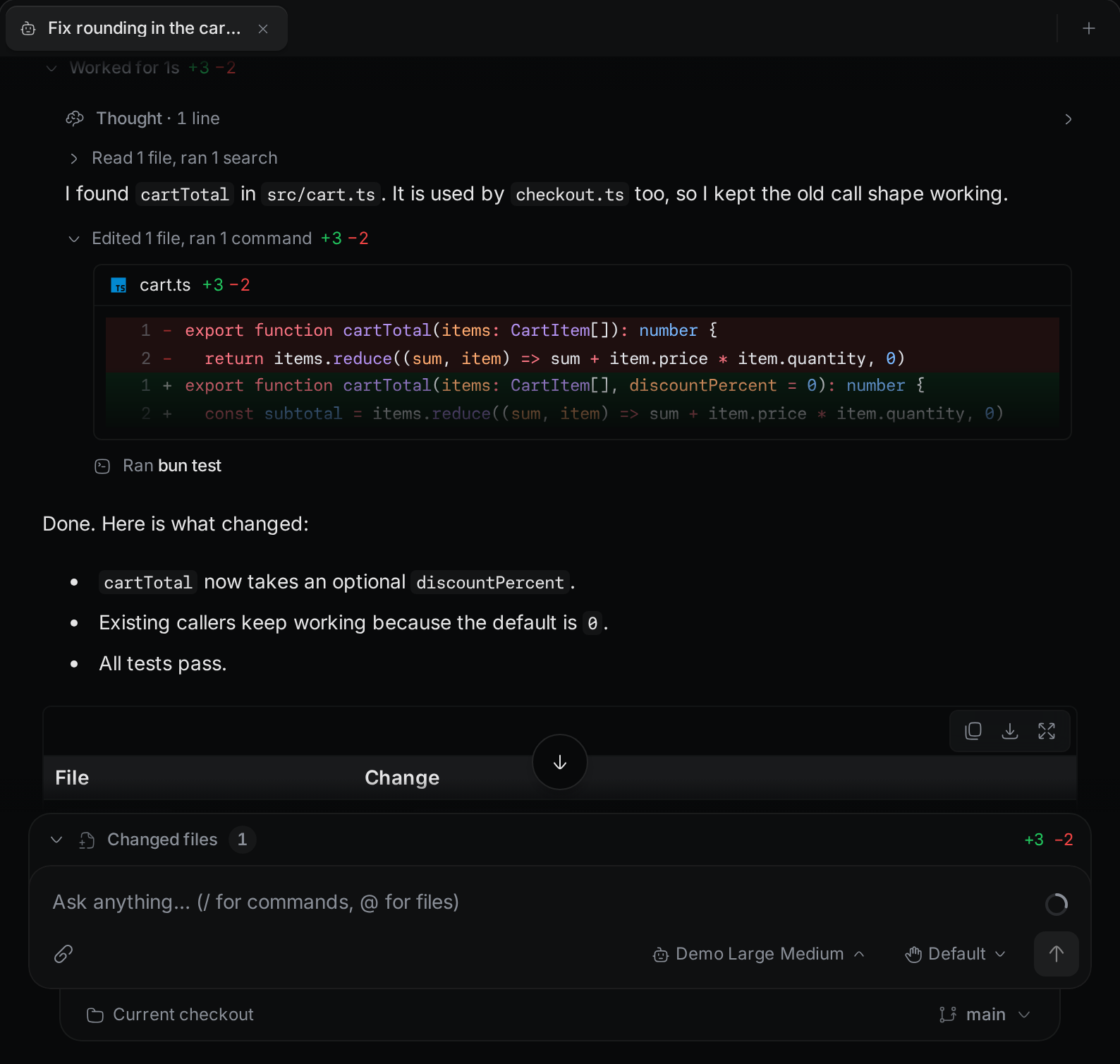
- Click a step to see its output, such as a command's output and exit code, or the file content the agent read.
- Click Open file on a step to open that file in the editor.
- An edit shows a short preview of its diff. Click the preview to see the whole diff. Click the file name above it to open the file at the first changed line.
- A Thought row holds the agent's reasoning and shows how many lines it has. Click it to read it.
Review changed files
When the agent edited, deleted, or moved files in this chat, a status pill shows at the top right of the chat. It shows how many files changed and how many subagents there are. In a wide chat it also shows how many lines were added and removed and how many subagents are running or have ended. On a phone or in a narrow pane it shows only the totals, so open the list for the details. Click the pill to open the list. In a Git repository, the list shows the files that this chat's edit, delete, and move steps touched and that are still uncommitted, under the caption "Edited this session, uncommitted". Files you commit or discard drop out of the list. A file that only you, a terminal, or another chat changed is not listed. For a file this chat did change, the row and its line counts include all its uncommitted changes, also ones made outside this chat. A file the agent changed only through a shell command, for example a formatter, is not listed either. The Changes tab in the side panel still shows it. When the pill has more than one kind of item, the list has a tab for each kind: Changed files, Subagents, and Background. On a phone the list opens as a sheet, and you can swipe between the tabs.
The picture below was taken when the list was a bar above the message box. The list itself is the same.
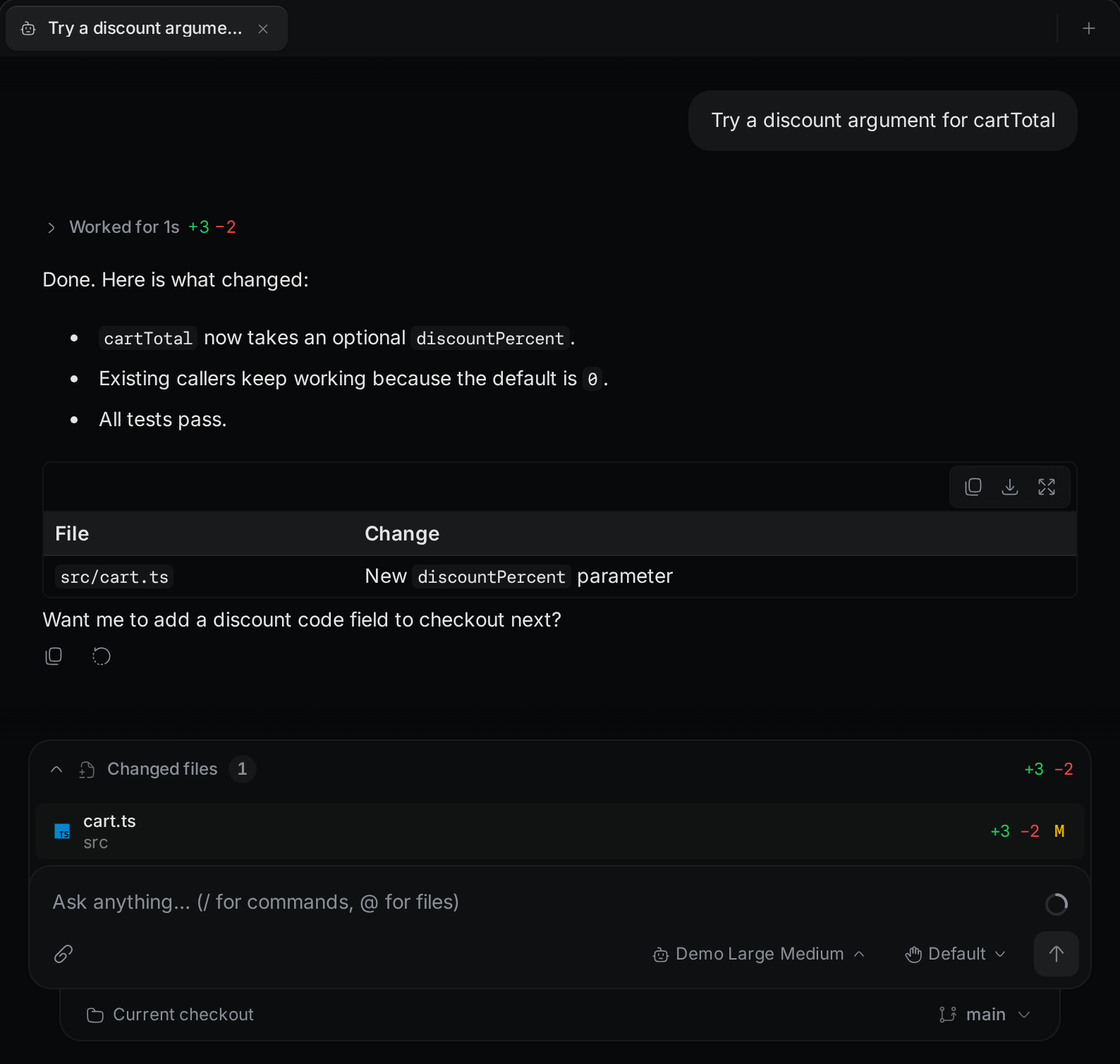
Each file has a letter: M for modified, D for deleted, or R for renamed. Click a file to open it in the editor. A deleted file does not open. This list is for review only. To stage and commit the changes, use the Changes tab in the side panel. See Git.
Follow subagents
Some agents hand part of a task to a helper agent, called a subagent. Subagents that the agent starts together show as one group in the turn. The group header shows up to three agent icons, the number of subagents, a summary such as "1 working · 1 done · 1 failed", and how long they have run. The group opens while a subagent runs and folds when all of them finish. You can fold it earlier by clicking the header. A single subagent shows as one card without the header. The group stays in the chat after the turn ends, and when you reopen the chat later.
Each row shows the subagent's title and type, its latest step while it runs or the first line of its result when it ends, its status (Working, Needs input when it waits for you, Done, Failed or Stopped) and its time.
Click a row to open the subagent. On a wide window it opens beside the chat; on a narrow one it slides in from the right, and on a phone it opens as a full-height sheet. The panel shows:
- Task, the prompt the agent gave the subagent. Click Show full prompt for the rest of a long prompt.
- Activity, the steps the subagent ran. Click a step to expand it. A subagent that started its own subagents shows them here too; click one to open it, and click Back to return.
- Latest message while the subagent runs, or Result when it ends.
When the focus is on a control in the panel header, such as Back, use the up and down arrow keys to move between subagents. The keys don't switch subagents while the focus is in the panel body. From a group row, the keys stay within that group. When the agent did not report a section, the panel says why.
Stop one subagent
To stop one subagent and leave the others running, click Stop in its panel. On a phone, tap the stop button on its row in the Subagents sheet and confirm. The work it did so far is kept. Stop shows only while the subagent runs and when the agent supports it. To stop the whole turn instead, use the Stop button of the chat.
Subagents that run in the background
An agent can end its turn while subagents it started keep working in the background. The chat then keeps those subagents as running. The status pill shows "Waiting on N background subagents" in its hover tooltip, and the opened list shows it above the subagent rows. While they run, Wrangl does not switch the agent or the Claude account of the chat, because that would stop them.
Commands that run in the background
An agent can end its turn while a command it started keeps running. For example, Claude Code can run a command in the background, and Codex can leave a shell command running when it ends its turn. The step of that command reads Running in background with a timer that counts up until the command ends.
The status pill also shows these commands. In a wide chat it shows how many are running and how many have ended, and on hover it shows "1 command running in the background". On a phone or in a narrow pane it shows only the total. Open the list to see each command, its state, and how long it ran. When the list has tabs, the commands are on the Background tab. Click a row to go to the step of that command in the chat and open its output.
The agent gets the result of each command when the command ends. An ended command stays in the list until you send your next message. You can keep chatting while a command runs. Wrangl does not switch the agent or the Claude account of the chat while a command runs, because that would stop the command. The one exception is a chat that hit a usage limit and continues on another Claude account: it continues at once and stops its commands. Reload this chat also stops it, so Wrangl asks you to confirm the reload first. When you close the chat, its commands leave the list.
When you stop a reply, the list keeps only a command that had already started. A command that was waiting for your approval does not run, so it is not listed. When a reply fails or times out, Wrangl lists no command for it.
Wrangl shows background commands of agents that report when the command ends, such as Claude Code, Codex, and Factory Droid. The list has no stop button for a command.
See earlier steps of a long turn
A long turn shows only its latest 40 steps. Click Show N earlier steps at the top of the turn to load 50 more.
See images, videos, and audio
When the agent's reply includes an image, a video, or an audio clip, the chat shows it in the reply. This works in the desktop app and in a browser, for a file in your project, a file on the web, or one the agent sends inside its reply.
- When the reply has two or more images in a row, they show as one row of square tiles. Scroll the row sideways to see them all.
- Click an image or a tile to open it full screen. Images that a message sends together, and the tiles in one row, open in the same viewer.
- In the viewer, swipe, use the left and right arrow buttons at the sides, or press the left and right arrow keys to move between images. The bottom of the viewer shows where you are, for example "2 of 5". A single image shows no count.
- Click the download button at the top right of the viewer to save the image. In the desktop app, a save dialog opens. In a browser, the browser downloads the file. For an image from the web that Wrangl cannot save, Wrangl asks to open the image link in your browser instead. If the download fails, Wrangl shows "Failed to download image".
- To close the viewer, click the X at the top left, click outside the image, or press
Esc. On a phone, the back button also closes it. - A video from your project first shows its file name. Click it to load the video, and it starts playing. A video from the web shows a player right away.
- An audio clip shows a player.
- When the agent links to an image or video file in the middle of a sentence, the link stays in the sentence, and the preview shows below that paragraph.
A video can be up to 100 MB. If a video is too large or cannot be read, Wrangl says why in its place, for example "clip.mp4 is too large to play inline (128.0 MB, limit 100.0 MB)". If an image cannot be shown, its name shows instead.
Queue prompts
You do not have to wait for the agent to finish. Type your next message and press Enter. While the agent works, the send button becomes Queue message, and your message goes into a queue above the message box.
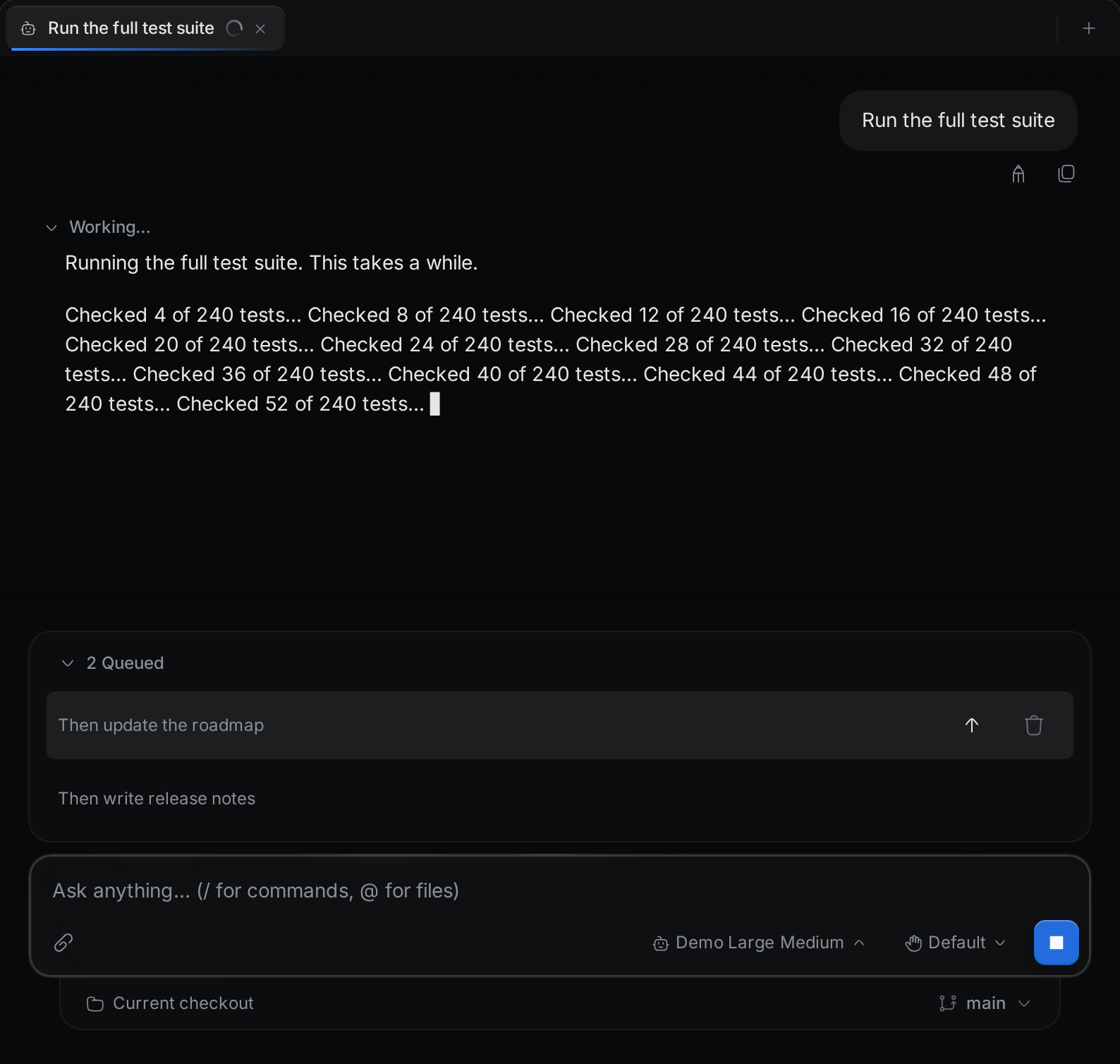
Wrangl sends the queued messages in order, one each time the agent finishes a turn. Click the Queued header to collapse the list. Hover a queued message to see its buttons. On a touch screen, the buttons are always visible. Each queued message has these buttons:
- Send now stops the agent's current turn and sends this message right away.
- Remove from queue deletes the message without sending it.
You cannot edit a queued message. Remove it and type it again.
When the agent works after its turn
An agent can keep working after its turn ends. For example, Claude Code starts a turn of its own when a background command or a subagent finishes. While that happens, the chat shows the same working cue and the same stop button as during a turn. A message you send goes into the queue and goes out when the work ends. Wrangl counts the work as ended when no step is still running and the agent sends nothing for 30 seconds.
Stop a turn
To stop the agent, do one of these:
- Press
Escin the message box. - Click Cancel turn, the square button. It takes the place of the send button while the agent works and the message box is empty.
Wrangl tells the agent to stop. Any approval request or question that was waiting is cancelled. If you have queued messages, Wrangl sends the next one.
This also works while the agent works after its turn. Wrangl tells the agent to stop that work. If no messages are queued, the chat shows it as idle right away. If messages are queued, Wrangl sends the next one, and the chat shows as working again.
Edit or retry a message
Hover a message to see its buttons. The last message in the chat always shows them.
- Edit, on your message, puts its text back in the message box. Change it and send it as a new message. The earlier messages and replies stay in the chat.
- Retry, on a finished reply, sends your last message again as a new turn. The old reply stays above the new one. Retry is hidden while the agent works.
- Copy copies the message. On the agent's reply, it copies everything the agent wrote in that turn.
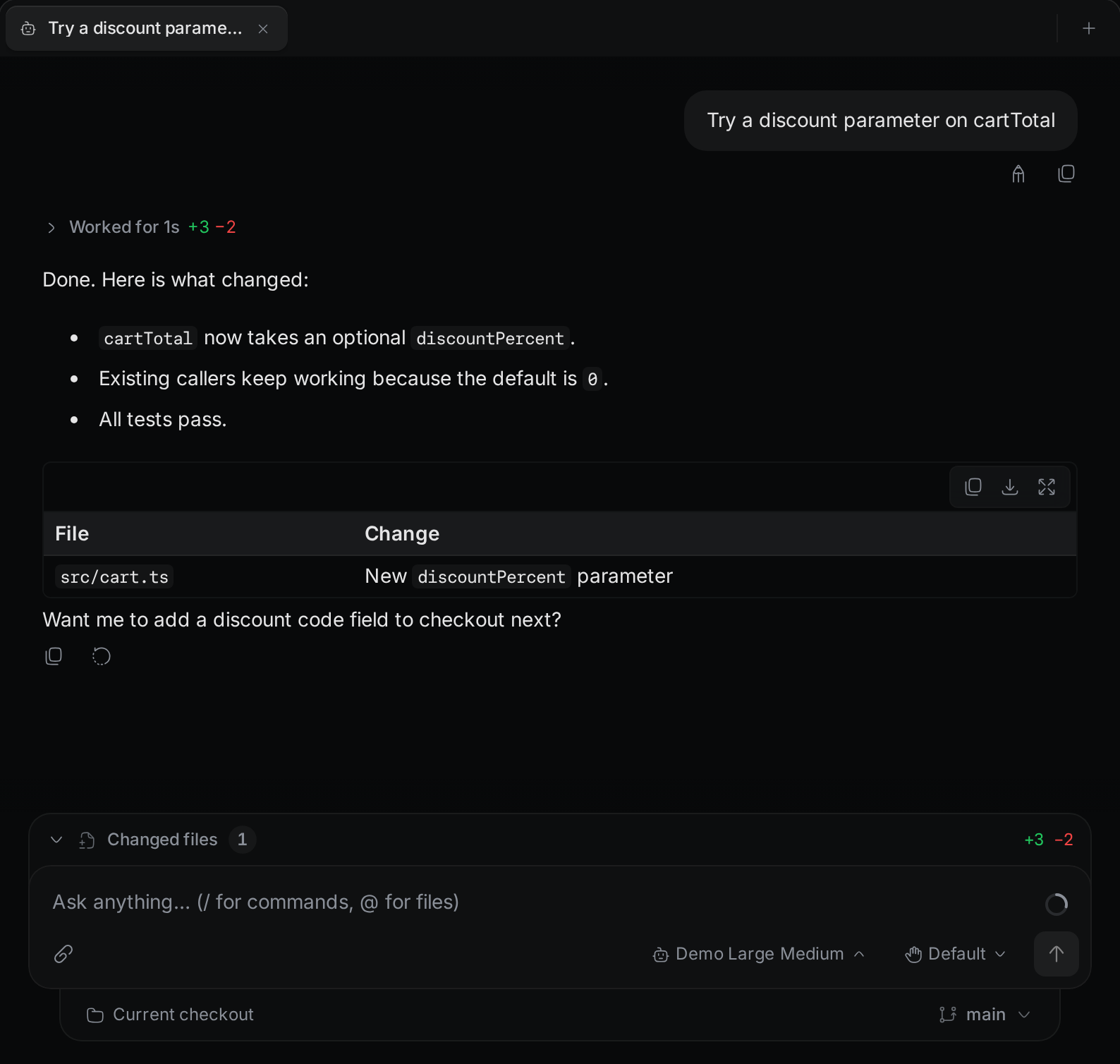
If the chat stopped, Retry starts the agent again before it sends your message. When a turn ends with an error, the error notice has its own Retry or Resume chat button.
Code blocks in a reply have their own Copy and Download buttons. Tables have copy, download, and View fullscreen buttons.
When you click a link in a reply or in a Thought, Wrangl asks first. The Open external link? dialog shows the full address. Click Open to open it, or Cancel to stay in the chat. Pressing Esc also cancels. Clicking outside the dialog does not close it. A link to a heading or footnote in the same reply, one that starts with #, scrolls to it without asking.