Edit a design on the canvas
Open your project's design file in a tab, edit it, and let an agent design on it.
The canvas is a design editor inside Wrangl. It opens your project's .corral file, a design file that holds frames, shapes, and text. You can keep the design in the same repository as the code and look at both in one window. The editor is built into Wrangl, so you don't need to install anything else.
Open the canvas
Select a project first. Then use one of these ways:
- Click Canvas in the left sidebar. When the sidebar is collapsed, click the pen icon (Open canvas).
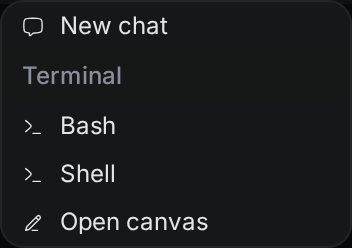
- Click + (New tab) at the right end of the tab bar, then click Open canvas.
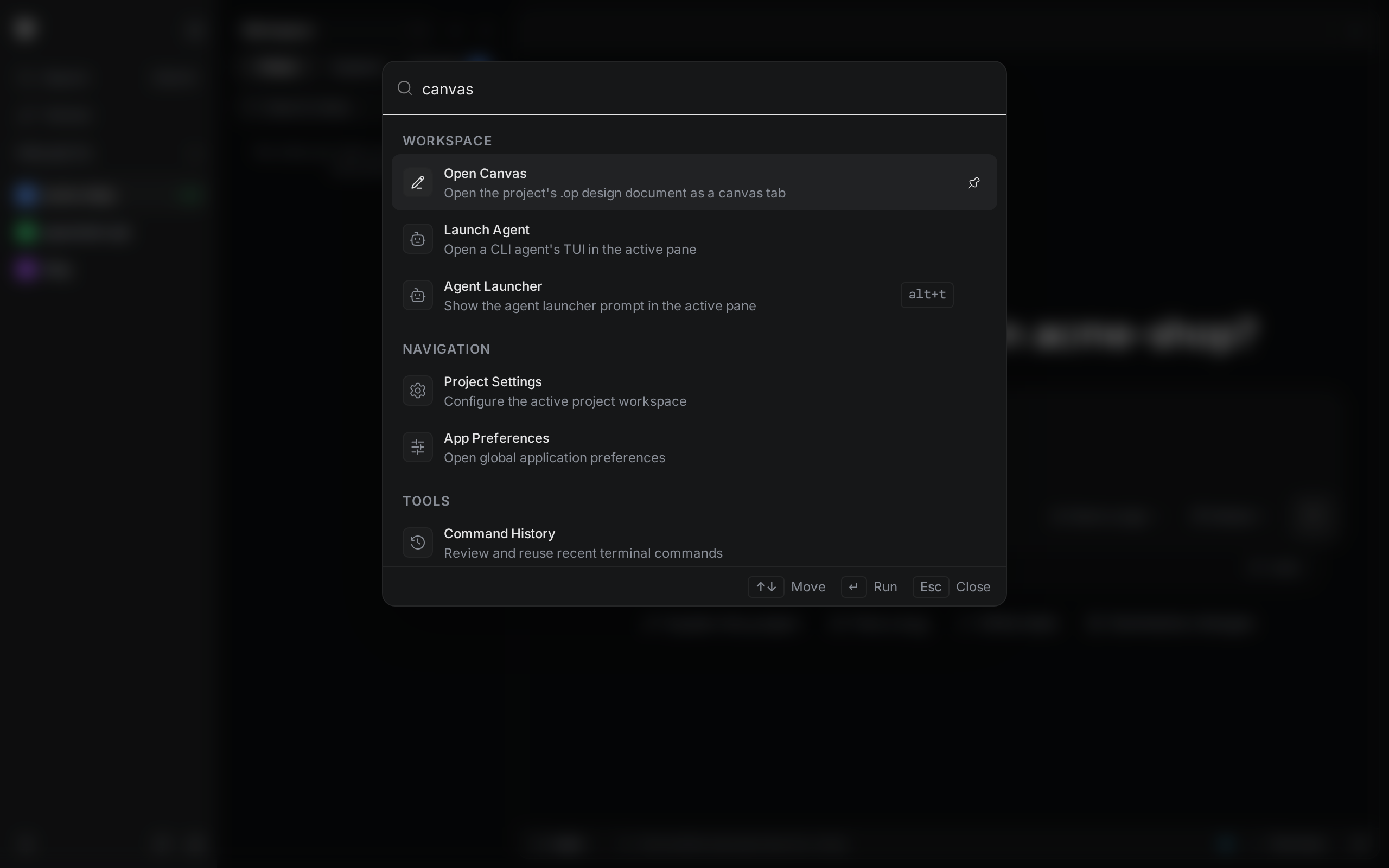
- Open the command palette with
Ctrl+K(Cmd+Kon macOS), typecanvas, and run Open Canvas. - Open a
.corralfile from the file explorer.
Wrangl opens the first .corral file in the project's root folder, in alphabetical order. It doesn't look in subfolders. If the project has no .corral file yet, you start with an empty design, and Wrangl saves it as design.corral in the root folder the first time it saves.
Each project has one canvas tab. If it is already open, Wrangl switches to it. When you close the tab, the design stays loaded in the background, so an agent can keep working on it.
Work in the canvas tab
The bar at the top of the tab shows the file name and the editor's status:
- Starting canvas… while the canvas starts.
- Loading editor… while the editor loads.
- Ready when you can edit.
- Canvas unavailable if the editor couldn't open. The reason shows in the tab.
- Open in another window if you opened the same design in another Wrangl window or browser tab. That window now has it. Click Take back to bring it back here.
- Unloaded if Wrangl unloaded the design to save memory. Wrangl keeps two designs loaded at a time. Click Reopen canvas to load it again.
Below the bar is the editor. Use its tools to add and change frames, shapes, and text. The editor uses the same light or dark appearance as Wrangl. Its header shows the design's file name and the project name.
The editor includes one font, Inter. On Windows, the desktop app also lends the editor a few installed fonts (Segoe UI Symbol, Microsoft YaHei, Malgun Gothic, and Segoe UI Emoji), so symbols, Chinese, Japanese and Korean text, and emoji show up instead of empty boxes. On macOS and Linux, and in the browser version, those characters can still show as empty boxes.
Save your changes
Wrangl saves your changes on its own a moment after you stop editing. A dot next to the file name means there are unsaved changes. To save right away, click Save at the right end of the bar. If a save fails, the bar shows Save failed.
When Wrangl unmounts the canvas, for example when you close a project or quit Wrangl, it saves first. If that save fails, Wrangl asks what to do: Retry, Keep editing, or Discard changes. Closing the canvas tab does not unmount the canvas, so it doesn't start this save or show these choices.
When the file changes outside Wrangl
If the .corral file changes on disk while you have no unsaved changes, Wrangl loads the new version. If you do have unsaved changes, Wrangl pauses saving and asks you to choose:
- Keep mine keeps your version.
- Take disk drops your changes and loads the version on disk.
- Save a copy writes your version to a new file next to the design, named like
design.conflict-20261025-091500.corral, then loads the version on disk.
If the file was deleted, choose Keep mine to create it again from your version.
If the editor stops responding, Wrangl reloads it from the last save and tells you how many unsaved changes were lost.
Let an agent design on the canvas
Agents you chat with in Wrangl get canvas tools on their own. You don't need to add an MCP server. An agent can read the design, change it, take screenshots of it, and save it. The design must be open on the canvas, or still loaded in the background, for those tools to work. While an agent works, you see its cursor on the canvas with the agent's name.
Wrangl also gives agents a set of design guides. They explain how to build a design step by step, how to handle a short request such as "landing page for a bakery", and how to lay out landing pages, web app screens, phone screens, dashboards, slides, social posts, and design systems. The session tells agents to read the guides before their first edit, and the guides work even when no canvas is open.
When you don't name a brand or a look, the agent can pick one of ten ready-made styles, such as Warm Editorial, Clean SaaS, or Night Tech. Each style sets colors for light and dark mode, text sizes, spacing, and corner rounding. The agent tells you which style it picked and why. Every style uses the Inter font, because that is the font the canvas includes.
See Agent setup for how to start a chat with an agent.