Troubleshooting
Fixes for common problems with installing Wrangl, starting agents, and using the browser version.
This page lists problems that Wrangl users run into, and how to fix them. If your problem is not here, see Report a problem.
macOS does not open Wrangl after a DMG download
If you download the .dmg file in a web browser and install from it, macOS Gatekeeper can stop the app from opening. Gatekeeper is the macOS check for apps from the internet.
Install Wrangl with Homebrew or the install script instead. Both install the same app without this problem:
brew tap wrangl-dev/wrangl
brew install --cask wrangl
curl -fsSL https://raw.githubusercontent.com/wrangl-dev/wrangl/main/scripts/install.sh | bashIf you already installed from the DMG, you can remove the download mark from the app yourself. The install script runs this same command:
xattr -dr com.apple.quarantine "/Applications/Wrangl.app"Linux: the wrangl command is not found
The install script adds the ~/.local/bin/wrangl command, which starts the AppImage at ~/.local/bin/wrangl.AppImage. It also adds Wrangl to your app menu. If the script warns that ~/.local/bin is not in PATH, your shell cannot find the command. Add the folder to PATH in your shell profile, for example in ~/.bashrc:
export PATH="$HOME/.local/bin:$PATH"The install script supports only x86_64 Linux. On other processors it stops with Unsupported Linux architecture.
Linux: the window is blank on Wayland
On a Wayland desktop with Mesa 25 or later, the AppImage can open an empty window. The terminal output shows Could not create default EGL display: EGL_BAD_PARAMETER. The library that the AppImage includes for Wayland does not work with the newer Mesa.
Start Wrangl with the wrangl command or the Wrangl menu entry from the install script. The command loads the libwayland-client library from your system instead. Install or update with the script if you do not have the command.
If you start the .AppImage file yourself, give the path to your system's library. The path is different on each distribution, for example /usr/lib/libwayland-client.so.0 on Arch or /usr/lib64/libwayland-client.so.0 on Fedora:
LD_PRELOAD=/usr/lib/libwayland-client.so.0 ./Wrangl_<version>_amd64.AppImageWith this command, the terminals in Wrangl also load that library. The wrangl command does not have this side effect.
If the library is in a folder that the command does not check, set WRANGL_WAYLAND_CLIENT_LIB to its path before you run wrangl.
An agent shows "Needs Node.js" or "Install"
Many agents run with Node.js or with uv, a Python tool. Wrangl shows the state of each agent in Settings > Agent chats and in the agent picker of a new chat.
- Needs Node.js or Needs Node means Wrangl cannot find
npx. Install Node.js. In a new chat, the Runtime required message has an Install Node.js button that opens the download page. - Needs uv means Wrangl cannot find
uvx. Install uv. The Install uv button opens its install page. - The Claude agent needs Node.js 22 or newer, with npm.
- Install from Agent Chat, or Install required in a new chat, means the agent is not installed yet. Open a new chat with that agent and select Install.
- Manual install means you must install the agent from its maker. Then make sure its command is on your
PATH.
Wrangl reads your PATH once, when it starts. On macOS and Linux it reads it from your login shell. After you install Node.js or uv, quit Wrangl completely and open it again. A new window is not enough.
In the browser version, the agents run on the computer with the server. Install Node.js or uv on that computer, then restart the server.
For more about agents, see Agent setup.
The browser version asks for an access token
A server that other devices can reach asks for an access token. If your browser does not have the token, or the token changed, Wrangl shows Server access token required.
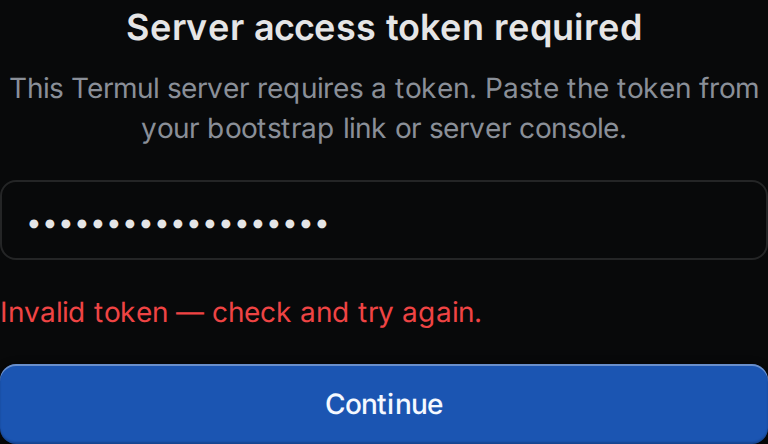
- Get the token.
- If you have the link with
#token=at the end, the token is the text after#token=. - If the server made the token itself, it is in a file named
web-auth-tokenin the server's state folder. On Linux and macOS that is~/.local/state/wrangl/web-auth-token. On Windows it is in%LOCALAPPDATA%\Wrangl. - With Docker, run
docker compose exec wrangl-server cat /home/wrangl/.local/state/wrangl/web-auth-token. - If you started the server with
--web-auth-tokenorWRANGL_WEB_AUTH_TOKEN, use that value.
- If you have the link with
- Paste the token and select Continue.
Invalid token means the token is wrong or the server has a new one. Could not reach the server means the browser cannot connect. Check the address and that the server runs.
On an iPhone or iPad, a Wrangl icon on the home screen keeps its own storage. Enter the token there once, even if Safari already has it.
For setting up the server, see Browser and phone.
The browser version shows "Host offline"
Host offline means the server stopped, for example for a restart or an update. Wrangl keeps checking. When the server answers again, Wrangl reconnects by itself.
- Start the server again if it does not come back on its own.
- To check right away, select the status light at the bottom of the window, or Retry.
- A terminal shows Host offline and says that input is buffered. Wrangl keeps what you type, up to a limit, and sends it when the server is back.
Reconnecting… is different. It means the connection dropped, for example on a bad network, and Wrangl is trying again.
A shortcut opens a browser action instead
Browsers keep some keys for themselves, such as Ctrl+T for a new tab and Ctrl+W to close one. The browser version of Wrangl uses Alt for these shortcuts: Alt+T for the agent launcher, Alt+W to close a tab, and Alt+, for settings. See the full list in Keyboard shortcuts.
If a shortcut still goes to your browser or to your operating system, give it other keys in Settings > Keyboard Shortcuts.
Notifications do not appear in the browser version
Browsers show notifications only for pages on https:// or localhost. See Notifications.